Showing posts with label Adobe Creative Suite. Show all posts

Friday, 24 April 2015

Photoshop tutorial: (ROTOSCOPING)


By using the brush tool and a colour of our choice we traced the dancer's movement to create our own character that moved and copied the actions of the dancer, we did this by using the timeline to move along the frames by using the next frame button, this gave us an accurate measurement of where and how the dancer was moving every second. The short time between frames was beneficial because it meant that our character was only moving slightly every frame, this made the video as a whole much smoother, the short frame times the better! This method was very laborious and was quite boring but the end result was worth it and the outcome looked smooth the transitions between frames were tight.


This was the timeline. (Window, Timeline) We created two new video layers one for the footage of the man dancing and one for the layer on which we would draw our character. This was a pretty simple process and a good skill to learn even though it was quite laborious I enjoyed using the timeline for the first time in Adobe Photoshop. 


After we made the gif animation we moved onto created a movie animation. We did this by importing some footage into photoshop after we created a new layer. The first thing we had to do was open the timeline in the window options, once we did this we could create a new video layer which sat on the top of our footage. On this layer we could draw whatever we wanted I decided to draw the man dancing as a stick figure and use the new frame button to redraw the stick figure on each frame to replicate the mans actions as he was dancing. This was a fairly short tutorial but one which I enjoyed and although I did not quite finish the whole video I feel as though I have gained a lot of experience in using frames in photoshop which before I never knew was possible!

Thursday, 23 April 2015

Photoshop tutorial: Animated GIF (PHOTOSHOP TIMELINE)


Firstly, we set up our document. We created a custom document because of the unique height and width of the pixels, we used a 300 pixels width by a 100 pixel height. this gave us lots of room to be able to play with and left plenty of room for our animation to animate in. The resolution didn't matter as we were only creating a quick and simple gif. 


This is where we learn a bit more about the timeline option in photoshop. To start to create the animation we created 10 different video layers and create a different object on every layer, I chose to create circles because i felt that this was a quick and simple gif using geometric shapes and i was focused on learning how to create the gif rather than the final outcome. Once we had our layers we selected the create frame animation button; this sent all of our layers onto one single layer on the timeline. we then selected the drop down menu on the right hand side of the timeline and selected the make all layers button. This made the 10 separate layer we once had in the order we made them in. We could then go onto creating the actual animation. 


These are some stages of development of my animated GIF, first we had to set up the photoshop document. we created a work space of 300 pixels by 100 pixels this is the normal size of most animated gifs. Once we had it set up it was time to start.

Step 1: We went to Window and selected Timeline.
Step 2: We created ten different layers and I used a geometric shape on each layer.
Step 3: Select Create key frame animation button
Step 4: A single layer appears, go to the drop down menu on the right hand side and select the button which creates the layers separately so there are more than 1.
Step 5: Mess around with the timing by selecting all of the layers and clicking on the time at the bottom of one of the layers in this case we changed it to 0.1 frames per second.

I was very happy with this tutorial, I learned a new skill that I never new was possible on photoshop (Animation) I found that the process of creating an animated gif was quite simple and useful for future if I were to create website designs with gifs which feature on the design. This is definitely one to remember for the future and I enjoyed the tutorial in general, I felt that I learned a lot from
this tutorial.

Friday, 20 March 2015

Photoshop tutorial: Pear and Rocket (APPEARANCE PANEL)


In this tutorial we created a rocket using only 4 shapes, and a pear mesh using the mesh tool and eye dropper tool to fill colour and the appearance panel to make the different textures of the rocket.

To create the rocket we created 4 simple shapes.

1) Rocket itself
2) Window
3) Wings
4) The squared pattern

To create the rocket we using the Pen tool, we then manipulated the outline by adding anchor points and changing directions to create a curved point and a base for our rocket. After this we curved in the edges by adding another anchor point and rounding it off by dragging the anchor point down. We did the same for the bottom curve. We used the pen tool to freehand the wings of the rocket, then edited it with the direct selection tool and anchor points to make the wing look more like a realistic wing of a rocket. 

After this we added a dotted line in the shape, by going to the appearance panel and making a new stroke, with this stroke we then selected 2px thickness this gave us a solid line which ran around the rocket, we made a dashed line simply by selecting "Dashed line" we selected a "minus" offset stroke which meant the stroke would appear inside the rocket.  


We then created the wings using the Pen tool creating a basic wing shape a duplicating it to create two wings for the rocket. After making the wings we made the pattern for the inside using the appearance panel to create an offset pattern which we then put into the rocket itself.
A white rectangle and two overlapping green rectangles, this made the crosshatching pattern that would be inside the rocket itself. After we added this we used the appearance panel to create the inner dashed lines, we used the same effect on the window which we created using the ellipse tool and finished our rocket off by adding a drop shadow creating an atmospheric effect.

The Pear:

To create the pear we used the mesh tool, we started with a rectangle and added a mesh to said rectangle, we then moved the mesh around so that it was roughly the same shape as the pear. After we had our mesh in place we added anchor points spanning across the pear mesh which allowed us to be able to render our pear.

We used the eye dropper tool on each and every anchor point we created, this proved to be quite a daunting task because of the amount of anchor points we created; going through each anchor point was a bit of a pain. But the end result was a good one, once we had rendered our pear we found a texture from the internet. I used the texture of a pear I found in the hope that it would more realistic, I was right and the pear was finished. Overall I was happy with the outcome and both tutorials as
a whole.

 This is the appearance panel which we used, in these set of options were different settings which allowed us to change things like the stroke of an object, the fill and many more options which allowed us to create patterns out of shapes and offset paths like the dotted lines which went inside my rocket.


Thursday, 5 February 2015

Adobe InDesign tutorial: (TYPE SETTING)

Type setting involving Widows/Orphans tutorial notes

In this tutorial we will learn about widows and orphans and how they make type setting looking inconsistent and unprofessional looking. 

Widow:  is a line of text at the end of a paragraph separated from the rest of the text, meaning that this line is either in the next column or in the next page. It can also appear as an opening line of a paragraph at the bottom of the column or a page, thus separated from the rest of the paragraph.

“Orphan” is a word or few words in its own row that end a paragraph, thus creating too much white space between paragraphs. These white spaces in a paragraph can be identified as being called "Rivers" this makes the type setting look inconsistent and not nice to look at. 


Here is a picture of some examples I have found on widows and orphans. It makes the type look messy and and hard to read, there are a number of different ways to solve this problem in InDesign. 

1) Justifying the type using the "Justify type" buttons. 
2) Using tracking and kerning to makes the space between words and letters more or less. 
3) Making the type itself larger or smaller by using the sizing settings.
4) Using the hyphenate button. 

All of these are different ways of making the type beautiful and clear, it also makes everything easier to read and makes the whole aesthetic of the type a lot more aesthetically pleasing. This was a helpful tutorial in learning how to justify and make my type beautiful. I will use this tutorial to work with my magazine to make the type setting the best I can I will watch out for things like orphans and widows and correct them so they look professional. 


InDesign tutorial: Magazine layout (DTP POSTER)


This is my cover, I kept the cover looking minimalistic by not adding too much information which would overcrowd the magazine. I used AVENIR ULTRALIGHT as my font I felt that the thin style of the font offered a more simplistic value which I wanted to add into my magazine cover.


I also made some double page spreads, I tried to focus on where the font would be situated. I aligned the text so that each paragraph was the same size and length this made the layout more pleasing and overall made the layout of the text and the whole page loo more professional.


In this instance, I used a white text which I was happy with. However, the white font was not clear to see on this background I used, I had a number of choices because of this. I could change the image to match the colour of the font, change the colour of the font to match the image or use the rectangle tool to create a separate background for my font to sit on.


I am happiest with the layout of the text on this page and how I have used long paragraphs and short paragraphs which I think creates interest.

Thursday, 20 November 2014

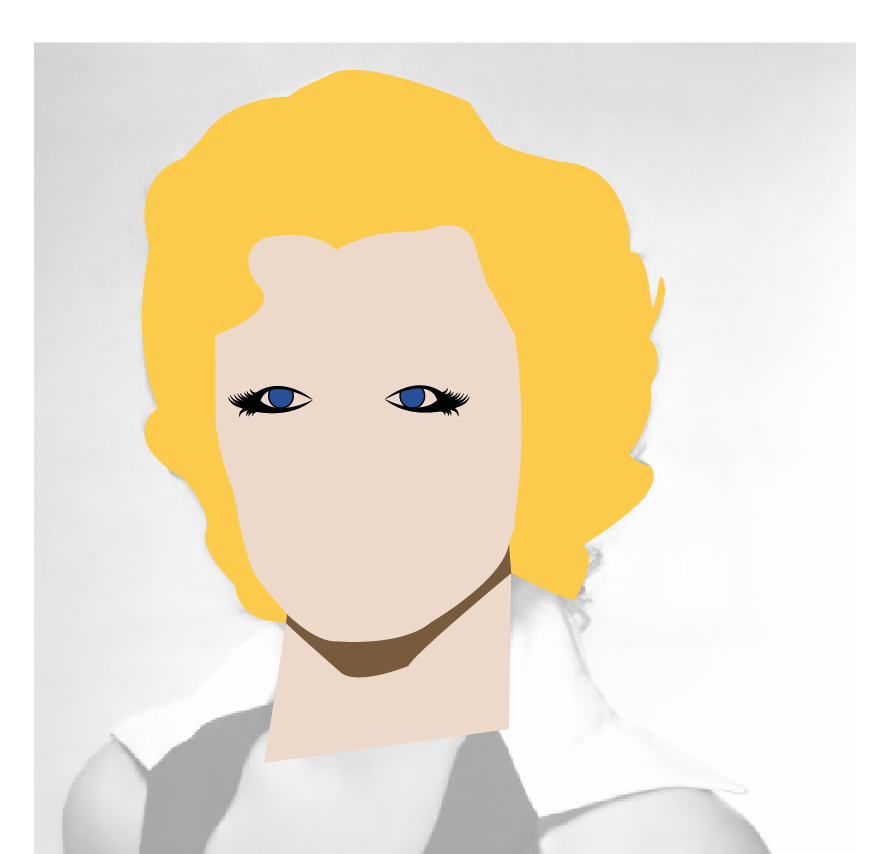
Adobe Illustrator vector: Marilyn Monroe

Marilyn Monroe


Step 1- We imported an image of Marilyn Monroe into a new document in Adobe Illustrator,we created a layer called "Facial Outlines" on this layer we proceeded to use the Pen tool to create the face and hair, without any fills. We then filled the basic outline of the face and hair in with two colours and cleaned up the design making sure there were no gaps in-between the hair and face.


Step 2- After we had created the basic outline we created the neck on the same layer by drawing a box like shape with the Pen tool I then coloured the neck the same colour as the face so they blended seamlessly together. Then I created a new layer above the facial outlines for the shadow which I also made using the Pen tool. I fixed any gaps between the shadow and the other objects by using the direct selection tool to fix various anchor point.


Step 3 - I created a new layer to start on the facial features and named the layer "Features" I deselected the face and hair so I only the original image was visible I then traced around the eye contour to create this eye shape.


Step 4 - I then created the eyelashes by creating a single curve and increasing the stroke, I then added a pointed effect to the eyelash so it didn't have a flat edge and actually looked like an eye lash. 
I created the bottom lashed by flipping the curve using Transform.


Step 4- I made a copy of the original eye and reflected it using transform, I adjusted the pupil so both eyes are looking in the right direction. 


Step 5 - I made an outline of the white of the eye and sent it to the back of the contour, I then made pupils using the ellipse tool and highlights using the same tool. 


Step 6 - I created the eyelashes using the Pen tool again increasing the stroke to 8 and then making the stroke cap a rounded edge to give the effect of an eyebrow. 


Step 7 - I made the lines for the nose using the pen tool using suggestive lines to mark out where the nose might be. 


Step8 - I made the lips using then pen tool adding a bright red for her lips and highlight were her lipstick is sparkling, this concluded my Marilyn Monroe illustration which I am overall very 
happy with. 

Friday, 7 November 2014

Photoshop tutorial: Lightbulb


Basic outline on what we did 

Step 1 - This is what layers we started off with, we rearranged the layers and started to work on the lightbulb itself, we used the Patch tool to get rid of the bottom of the lightbulb and the black smudged  line down the side of the layer. This made the layer as a whole look a lot cleaner, once I had the lightbulb how I wanted it to look I started to work on the positioning of the bronze coloured base of the lightbulb, I used blend options to create the effect of the bronze bottom and now it had the appearance like it was always there. 
I made the stick sharper and more clear and put it in place once happy it was time to add the leaves I changed the colour by using the render tools I chose a vibrant green colour which I thought looked quite realistic, I then used the dodge and burn tools to make the tree look darker. 
I created a copy of the tree and transformed it around the edges of the lightbulb using the warp tool, I darkened the edges of these as well making it look like the highlight was trapped inside the bulb. I then used the opacity tool to finish the highlights off and I was happy with how it looked. 


Here is the Finished Product


This is the finished product, I am very happy with the outcome and the highlights work well with the effect of the glass bulb. 
I love the background and how it isn't plain white, this gives the bulb a defined edge which I like because of how clear we can see the bulb.